Break LibreOffice Guides Break LibreOffice Guides
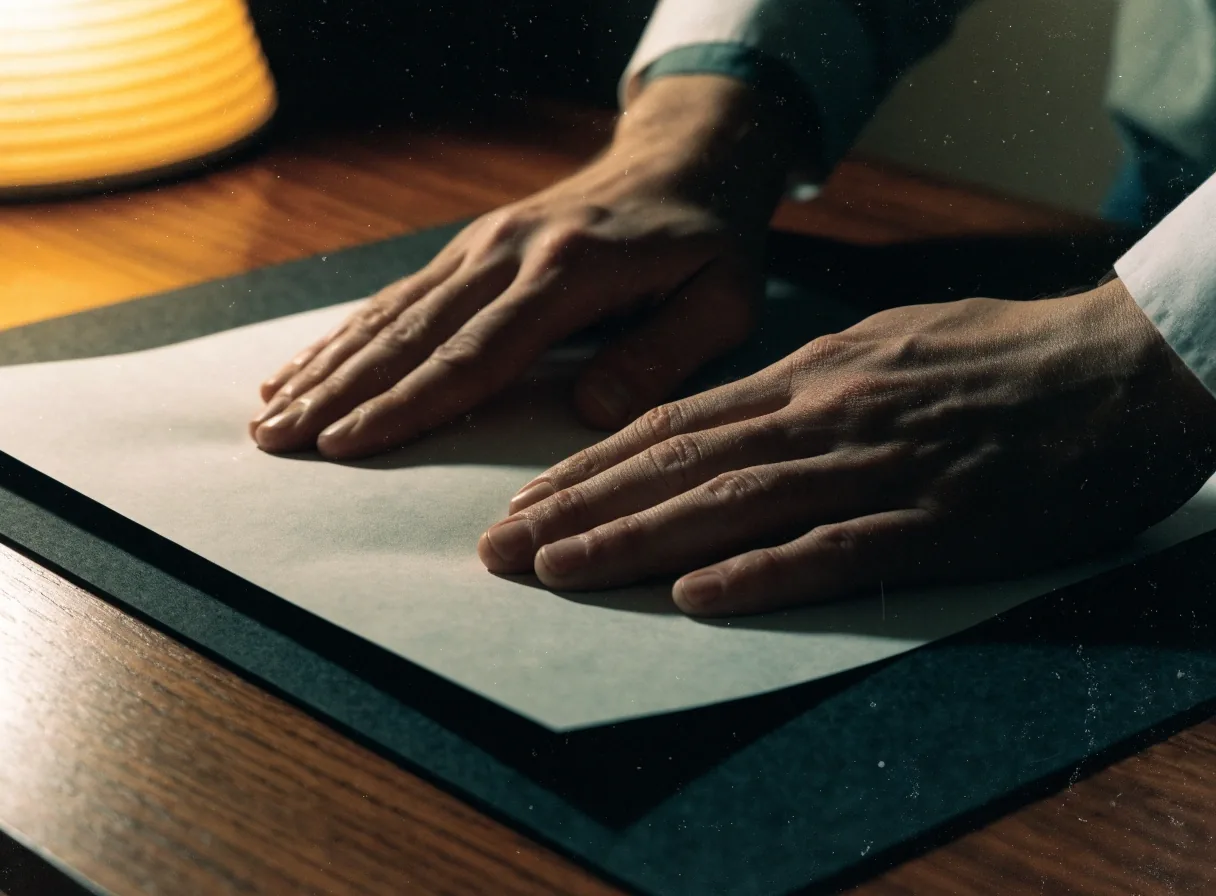
Hands formatting a Writer document on a learner's desk under a warm lamp

LibreOffice Writer Guide

Writer formatting that stays tidy under pressure

One sheet at a time, the task gets done. Create, format, and manage documents that hold their shape from the first draft to the final page.

Free to read · Downloadable templates · Works offline in LibreOffice

What this guide covers

Fewer manual fixes, cleaner headings, files you can hand over

This LibreOffice Writer guide helps you create, format, and manage documents that stay consistent from the first draft to the final page. It covers Writer help, formatting tools, styles, templates, and mail merge. The aim is simple: fewer manual fixes, cleaner headings, and files you can hand to someone else without apology.

Everything here is written for everyday work — a letter, a report, a procedure, a mailing — in the version of LibreOffice you can install free. You do not need a subscription, a course, or a new computer. You need a document that behaves the same way on page two as it did on page one.

Work through the sheets in order if your document keeps breaking. If you already have a working document, jump to the section that matches the job — styles for structure, page styles for headers, templates for repeat work, mail merge for personalised letters.

Before you format

Why Writer documents fall apart

Most messy Writer files share one cause. Headings are typed larger by hand, spacing is set with empty paragraphs, and lists are faked with hyphens. Each fix works once, then fails when you add a page or change a margin. Styles solve the root cause because every paragraph of a type shares one definition.

Direct formatting is not wrong in itself. It is wrong as a system. A heading made bold and larger by hand will not appear in the table of contents, will not update when you change the heading size, and will not move cleanly if you restructure the document. The file looks tidy until the first real change, then every heading needs fixing again — and the fixes never quite match.

The habit to build is simple: decide what a paragraph is before you decide how it looks. Heading, body text, caption, quote, list item — each gets one style, applied in one click. The look follows from the definition, so the document can grow without drifting.

A Writer sheet being formatted on the desk
Formatting on the page, not by hand
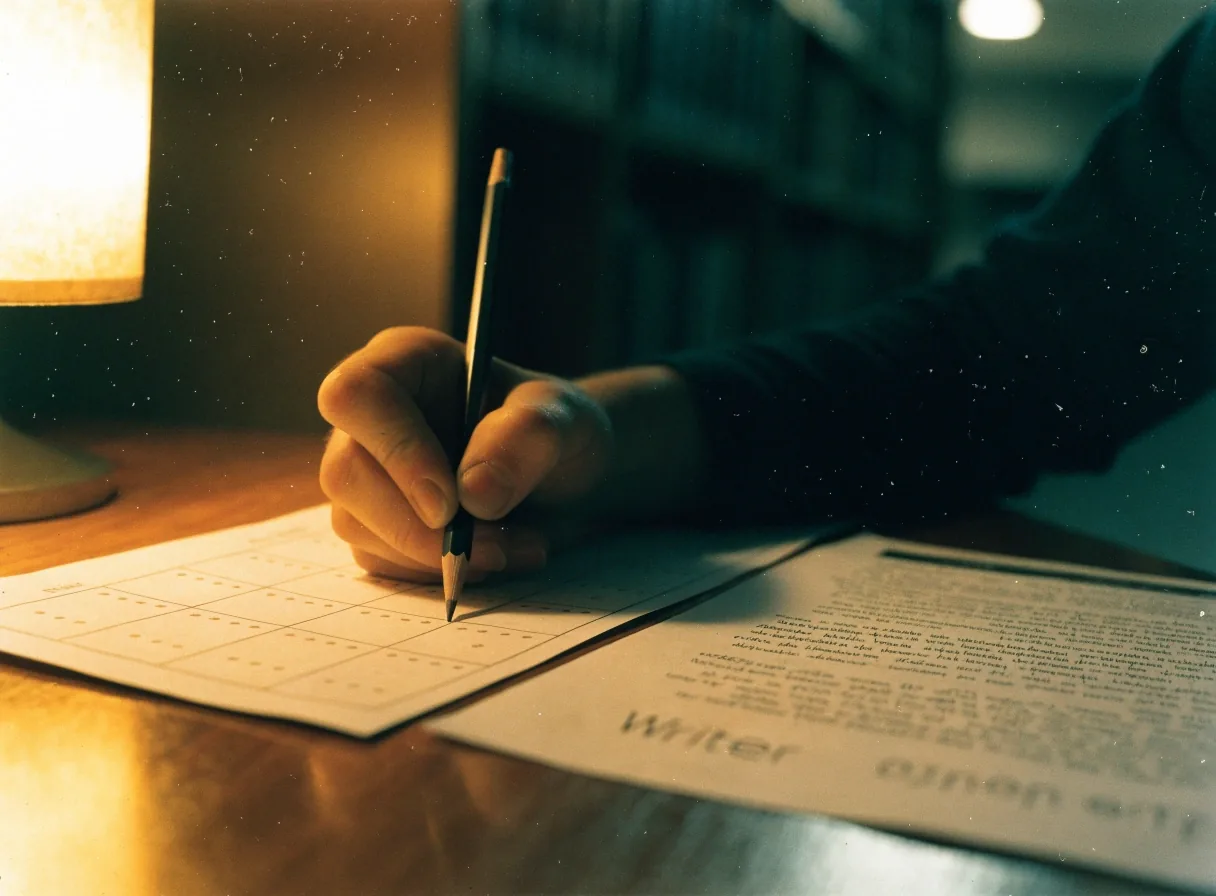
A Calc grid sheet beside the Writer document
The grid beside the page — data you will merge later

Styles

Paragraph styles do the heavy lifting

A paragraph style controls font, size, spacing, indentation, and keep-with-next behaviour for whole blocks. Apply Heading 1, Heading 2, and Text Body instead of direct formatting. When a report grows, you change the style once and the structure updates everywhere. The table of contents reads those heading styles, so it updates without retyping.

In LibreOffice Writer formatting, the practical order is: apply the paragraph style first, then adjust the style definition if the look is wrong — never patch individual paragraphs. To change every Heading 2 in a long report, right-click the style, choose Modify, and set the font and spacing there. Every paragraph using that style changes together, including future ones you have not written yet.

Character styles handle local emphasis

Character styles apply to words inside a paragraph, such as a warning note or a product name. They keep emphasis consistent without changing the paragraph style underneath. Use them sparingly and name them for their job, not their appearance. A style called Important Note will still make sense next year.

The test for a character style is reuse. If you bold one phrase as a one-off, direct formatting is fine. If you will bold the same kind of phrase in ten documents, make a character style and apply it by name. When the house look changes, you edit the style once.

Page styles control the frame around the text

Different pages in one document may need different headers, footers, or orientation. Page styles handle that, while paragraph styles handle the text inside. A title page, a landscape table, and a standard page can live in one file this way. Confusing the two is why headers vanish after a section break.

A practical setup: use First Page for the title page with an empty header, Default Page Style for the body, and a Landscape style for wide tables. Headers and footers belong to the page style, so they appear only where that style is active. If a header disappears, check which page style the page is using before you retype anything.

Structure that renumbers itself

Lists should be real lists

Insert a step, numbering follows

Use the list styles or the toolbar list buttons so numbering restarts and continues correctly. A hand-typed “1.” will not renumber when you insert a step. In a procedure document, that error spreads fast. Real lists also read correctly when the file is exported.

Restart numbering where a procedure begins again — after a heading, or after an interruption. Continue it where the steps genuinely continue. If a list will not restart, you are probably fighting direct formatting on individual items: clear it and reapply the list style to the whole block.

Tables need a steady structure

Set table borders, header rows, and column widths before you fill in content. Repeat the header row on each page for long tables. Avoid using a table just to position text on the page, because it breaks when text grows. A table for data and a page layout for text are different jobs.

For a table that runs over two pages, mark the first row as a repeating header so the reader keeps the column names. Keep cell margins consistent, and let the table grow in height rather than fixing row heights that clip text. If text overflows a cell, the row height is probably locked — release it and the table repairs itself.

A printed table sheet beside filed records
Data in a table; layout in the page

Repeat work, done once

Templates turn a good document into a standard

When a document works, save it as a template with its styles and page setup. The next letter or report then starts from that template instead of a blank page. LibreOffice templates from the official repository can also give you a tested starting point. Edit a copy, keep the original template clean, and your standard survives.

Save the template before you add the content that changes every time — the client name, the date, the amounts. Those go in the document you create from the template, not in the template itself. A template full of last month's details is just a blank page with extra steps.

Writer templates carry paragraph styles, page styles, headers, and footers together. That is what makes them worth the few minutes they take: the next document inherits the whole frame, not just the font.

Read the styles and templates guide
Printed templates stacked in an open drawer
A clean original, edited copies

One letter, many recipients

Mail merge starts with clean data

Mail merge in LibreOffice combines a Writer document with a data source such as a Calc sheet or a Base table. The document holds the wording, and fields insert names, addresses, or amounts. Test with one record first and print a proof. A single wrong field name can spoil a whole mailing list.

Prepare the data source before you touch the document: one header row, one record per row, no merged cells, no blank rows in the middle. Column names in the Calc sheet become field names in Writer, so name them plainly — First name, Address, Amount — and keep them stable. If you rename a column after inserting the fields, the merge will not find it.

Then preview a single record, check that every field lands where it should, and print that proof before running the full list. Personalised mail fails quietly: the letter prints fine, only the name is wrong. One proof catches it; a hundred reprints do not.

Review and share

Track changes and comments keep review honest

Use track changes when a draft goes to a colleague or a client. Comments leave questions in place without rewriting the text. Accept or reject changes in a final pass so no hidden edits remain. That habit also makes DOCX exchange safer, because changes are visible rather than buried.

Turn tracking on before you send the draft, not after you receive edits back. A colleague who edits without tracking leaves you comparing two versions by eye. With tracking on, every change is a decision you can accept or reject, in order, with the original text still there.

Export checks before you share

Export to PDF from Writer when the recipient only needs to read or print. Check that fonts are embedded in the way the export setting promises. For editable files, choose ODT for LibreOffice users and DOCX for Microsoft Office users. Open the exported file once before you send it.

Opening the export once is the cheapest check there is. It catches missing fonts, broken headers, and a table that split across pages in a way you did not expect. Send the file you opened, not the one you assume is the same.

Help sheets filed in a desk drawer
Help filed where you can reach it

Writer help is organised by task

Writer Help in the online help system is separate from Calc and Impress help. Search within Writer Help for the feature name you see on screen. Press F1 for built-in help when it is installed. The help pages for 2026 include wording that matches recent branches.

Search by the name on the menu, not by what you think the feature is called. Writer Help follows the interface, so the words on the button are the words in the search box. If nothing comes up, the feature probably lives in a different module — Calc help will not answer a Writer question.

A layout discipline you can keep

Decide heading levels, spacing, and table style before you write the second page. Keep direct formatting for genuine one-offs. Review styles at the end of a draft, not only at the start. A ten minute style check can save an hour of repairs.

The end-of-draft check is where the discipline pays. Open the styles panel, click through each style, and confirm every paragraph of that type looks right. One fix in the style definition repairs the whole document. Do it at the start and you prevent drift; do it at the end and you catch it. Both are cheaper than fixing headings one by one.

Common questions

Asked at the desk, answered plainly

Two questions come up more than any others when people start using Writer styles and mail merge. They are answered here in the same words you would use at the desk.

Break LibreOffice Guides · 42 Grafton Street, Dublin 2, Ireland · +353 1 611 5607 · info@break.ie · Monday to Friday, 9:00 AM to 6:00 PM

What matters most in Writer styles?

Paragraph styles for headings and body text matter most, because they drive the table of contents and keep spacing consistent across long documents.

Get Heading 1, Heading 2, and Text Body set up first, and the rest of the document has something solid to hang on. Character styles, list styles, and page styles refine from there — but the paragraph styles are the structure everything else reads.

How does mail merge work in LibreOffice?

A Writer document contains the text and fields, while a data source supplies the records. Preview one record, check the field names, then run the merge for the full list.

The data source can be a Calc sheet or a Base table. Keep one header row and one record per row, preview a single record before the full run, and the merge sends each recipient their own letter from one document.

Where to go next

Styles and templates carry what you have learned here into every new document. The compatibility guide covers sending Writer files to Microsoft Office users without losing the structure. The help and extensions guide covers Writer Help and the add-ons that extend it.